yt.be/activate: sign in on your TV with a code
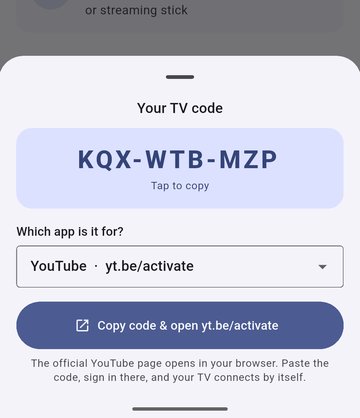
Your TV shows a code and asks you to visit yt.be/activate. Open that address on your phone or computer, type the code, sign in with your Google account and confirm. The TV connects by itself a few seconds later.
Open the official yt.be/activate page
Want it faster? Our free app scans the QR code on the TV, reads the code with your camera and opens the official page for you.
Get TV Code Helper on Google Play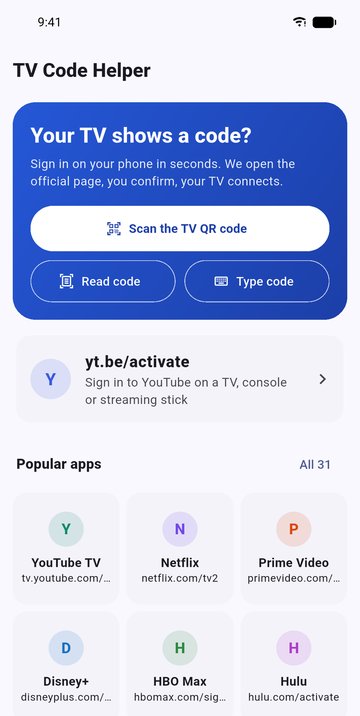
How to use yt.be/activate
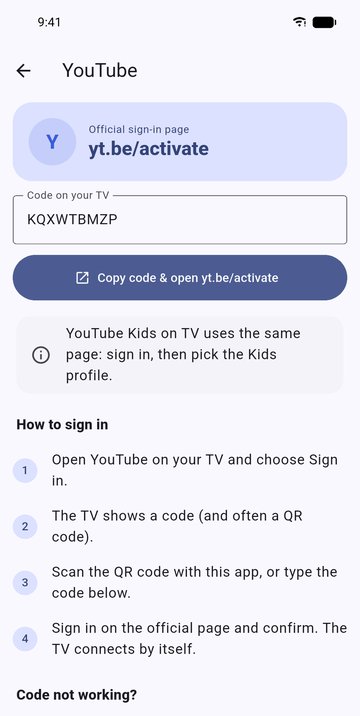
- Open the YouTube app on your smart TV, console or streaming stick and choose Sign in.
- The TV shows a short code (and often a QR code).
- On your phone or computer, go to yt.be/activate, or scan the QR code.
- Type the code, sign in with your Google account and tap Allow.
- Keep the TV on the code screen: it signs in by itself.
Code not working?
- The code expired. Codes last a few minutes. Choose Sign in on the TV again for a new one.
- "Invalid code". Check similar characters such as 0 and O, 1 and I. Try typing it without dashes.
- Wrong account. Sign out on the page that opens, then sign in with the account you want on the TV.
- The page opens the YouTube app instead. Open yt.be/activate in your browser (Chrome, Safari), not in the YouTube app.
Activation is always free. YouTube never asks you to pay to activate a TV. Never enter your password on a site that is not youtube.com or google.com.
Scan the TV QR code
Point your phone at the TV. Official sign-in links open in your browser; anything else gets a warning.
Read the code
Take a photo of the TV screen and the app reads the code on your phone. The photo is deleted at once.
31 streaming apps
YouTube, YouTube TV, Netflix, Prime Video, Disney+, HBO Max, Hulu, Paramount+, Spotify, Twitch and more.
Device guides
Samsung, LG, Google TV, Roku, Fire TV, Apple TV, PlayStation, Xbox and Nintendo Switch.
No password
You sign in on the service's own website. The app never sees your account.
Free
Supported by ads. No account, no sign-up.